Sign in and open up Steam
Go to your Library
In the upper left corner, choose Games and Software, then checkmark Tools
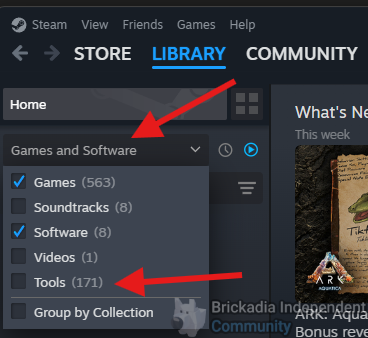
scroll down or search for Brickadia in your steam library. You should now see two items:
Brickadia
Brickadia Server
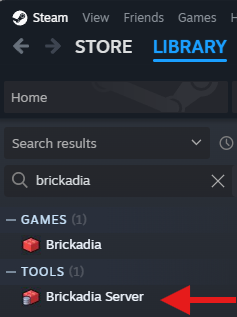
Install the Brickadia Server item
Go to https://brickadia.com/account and login, then generate a server hosting token. copy this somewhere
Once the brickadia server is done installing, right click the Brickadia Server item, then choose Properties
Be sure you have the General tab on the left selected
Under LAUNCH OPTIONS, put -token=ReplaceMe, then change the ReplaceMe to be the token you copied several steps earlier. You now should have a similar entry as the one pictured below.
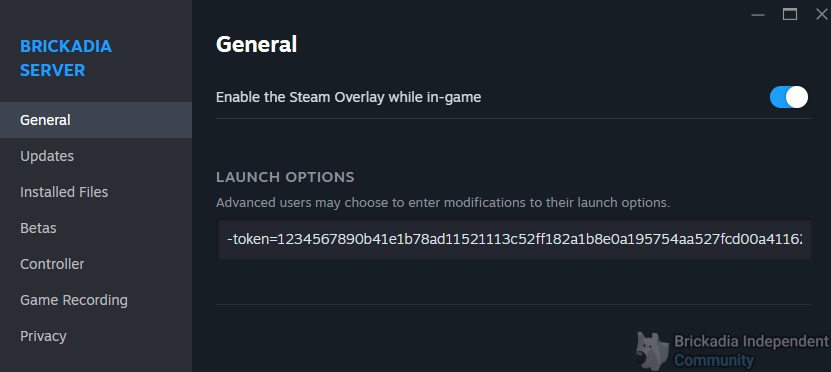
Once you have entered this in, simply close the window using the X in the upper right corner
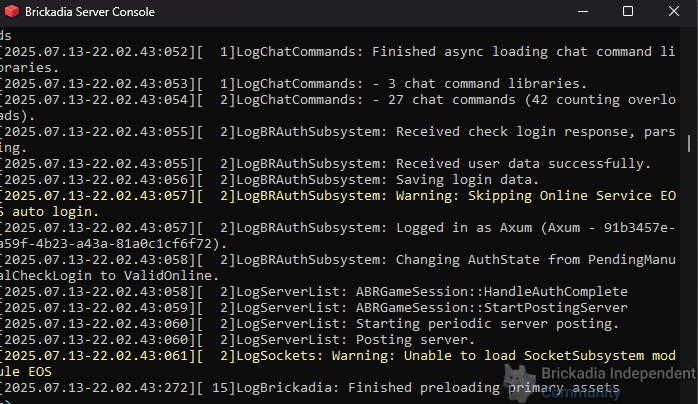
Now launch the brickadia server
If done correctly, you should have a window like the following:
Now launch your normal Brickadia game on the computer you will be playing from
Click Join Game then Manual Connect
If the brickadia server is on the same machine as the game, use the default 127.0.0.1 address to connect.
if the brickadia server is on a different machine, you will need to locate the IP address of the server, then fill out the IP address in the Manual Connect window.
Open up the game menu (This is usually bound to the Esc key)
Set your server info, description, password (if needed) and any other info. Then hit Save
Back at your brickadia server terminal window, type exit to exit the server.
Browse to %localappdata%\Brickadia\Saved\Config\WindowsServer
In this directory, review your server settings within this file.
If all settings look good, save the file.
Verify now that you have port forwarded udp port 7777
Start the Brickadia server again from Steam.